
Mount Hard Drives and Set Up Samba Service in Ubuntu
11/22/24About 1 min
Mount Hard Drives and Set Up Samba Service in Ubuntu
1. Mount Hard Drives
Mount Partitions Manually and Temporarily
- Get the list of hard drives
sudo fdisk -l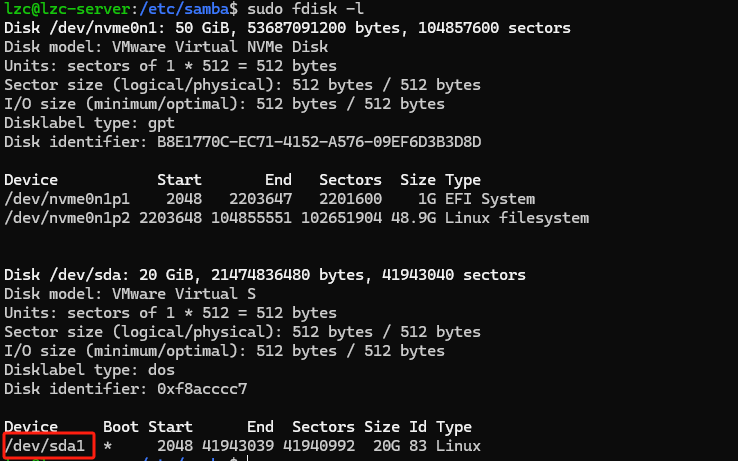
- Mount using the device name
sudo mkdir -p /media/disk0
sudo mount /dev/sda1  /media/disk0
Auto-Mount on Boot
To prevent name changes, use UUID to mount the hard drive.
- Get the UUID of the partition
lsblk -o name,UUID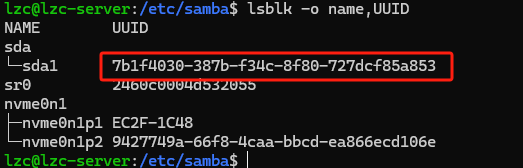
- Edit
/etc/fstab
/dev/disk/by-uuid/7b1f4030-387b-f34c-8f80-727dcf85a853 /media/disk02. Set Up Samba Service
- Install Samba
sudo apt install samba- Create a shared directory and set permissions
sudo mkdir -p /srv/samba/shared
sudo chown nobody:nogroup /srv/samba/shared
sudo chmod 2775 /srv/samba/shared- Configure Samba
sudo vim /etc/samba/smb.conf
[shared]
   path = /srv/samba/shared # Path
   browsable = yes  # Whether to allow browsing this share in Network Neighborhood.
   read only = no # Whether it is read-only
   guest ok = no # Whether anonymous access is allowed
   create mask = 0775
directory mask = 0775- Samba User Configuration
adduser your_username # Add a user. Skip this step if you are using an existing user

smbpasswd -a your_username  # Set SMB access password
smbpasswd -e your_username # Enable the user- Restart the Samba service
sudo systemctl restart smbd- If the firewall is enabled, add a rule
sudo ufw allow samba- Solve the problem that Windows cannot connect
# Disable guests
usershare allow guests = no
map to guest = never
References
- Quickly Set Up a Samba File Sharing Server on Ubuntu 22.04
- Solving the Problem that Win10 / 11 Clients Cannot Access the Samba Server
AI Translation | AI 翻译
This article was translated from Chinese to English by AI. If there are any inaccuracies, please refer to the original Chinese version.
本文由 AI 辅助从中文翻译为英文。如遇不准确之处,请以中文原版为准。